Quick Start Guide
Connect to your first database in under 5 minutes
This guide walks you through connecting to a SQLite database and running your first query. No server setup required.
New to SQL? Try the free SQL Playground in your browser before installing the Mac app.
1. Create a New Connection
From the home screen, click New Connection or use the keyboard shortcut:
⌘+N
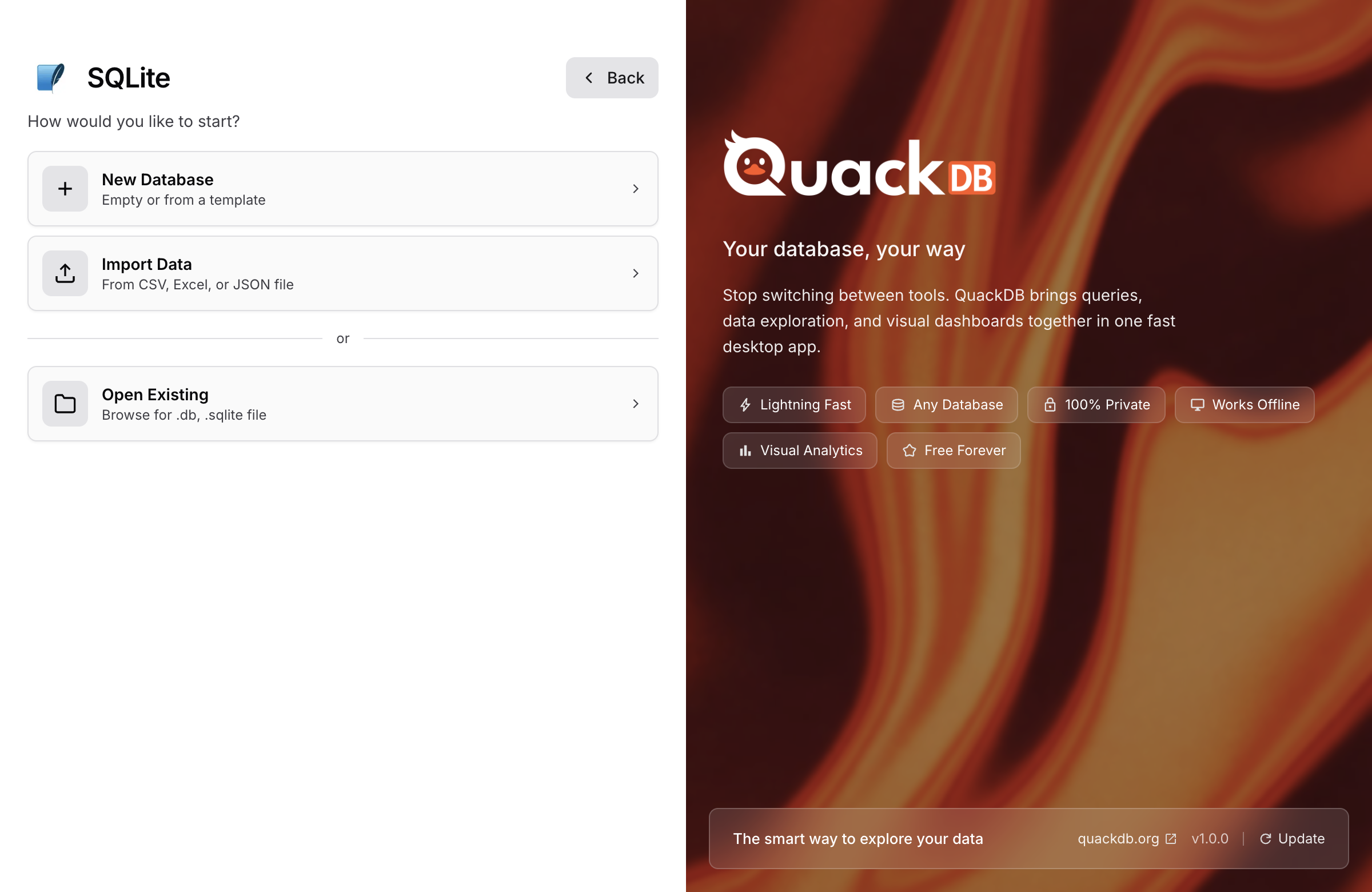
2. Select SQLite
Choose SQLite from the database type options. SQLite databases are single files stored on your computer - no server needed.
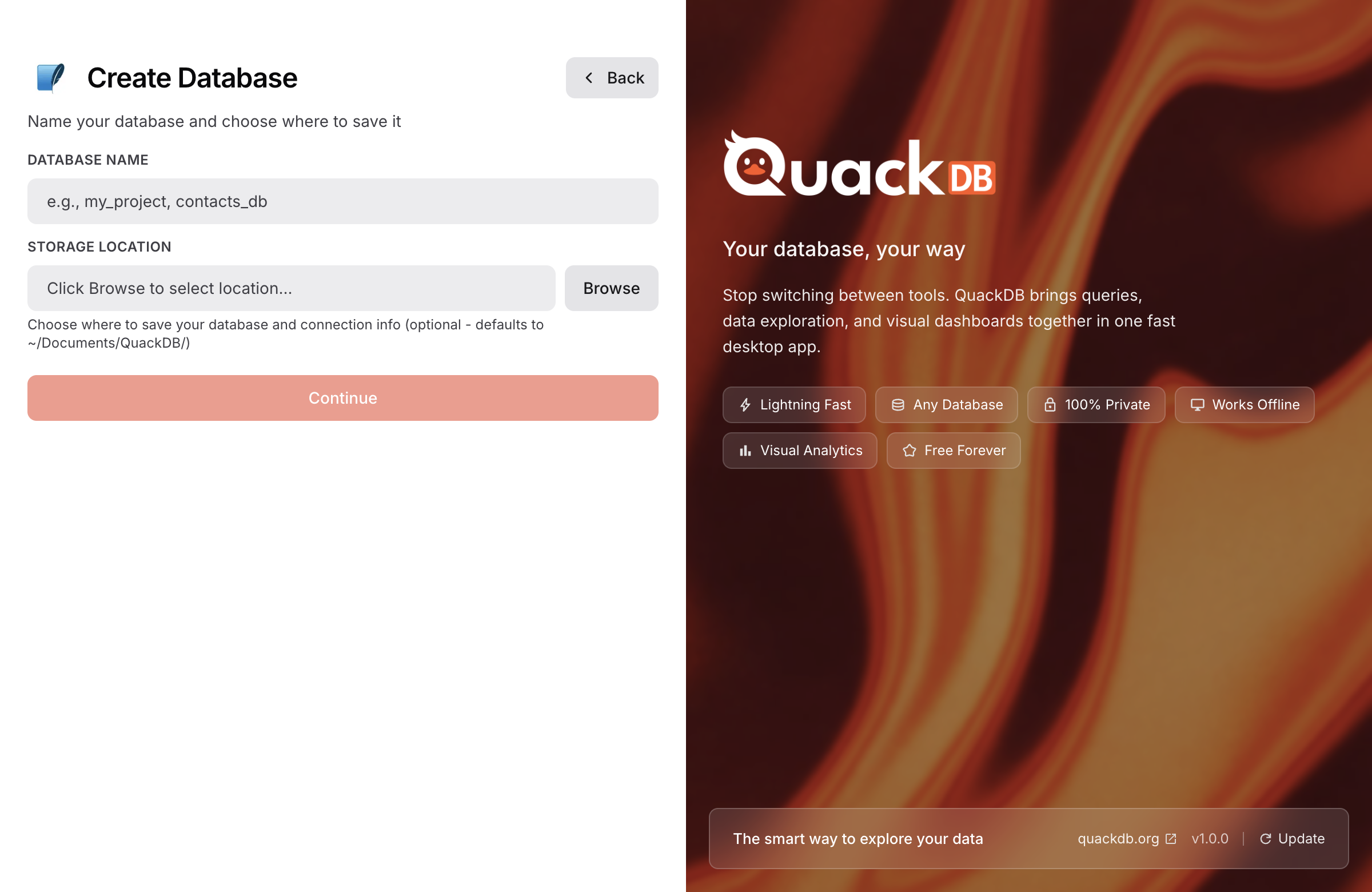
3. Choose Your Database File
Click Browse and navigate to your .db,.sqlite, or.sqlite3 file.
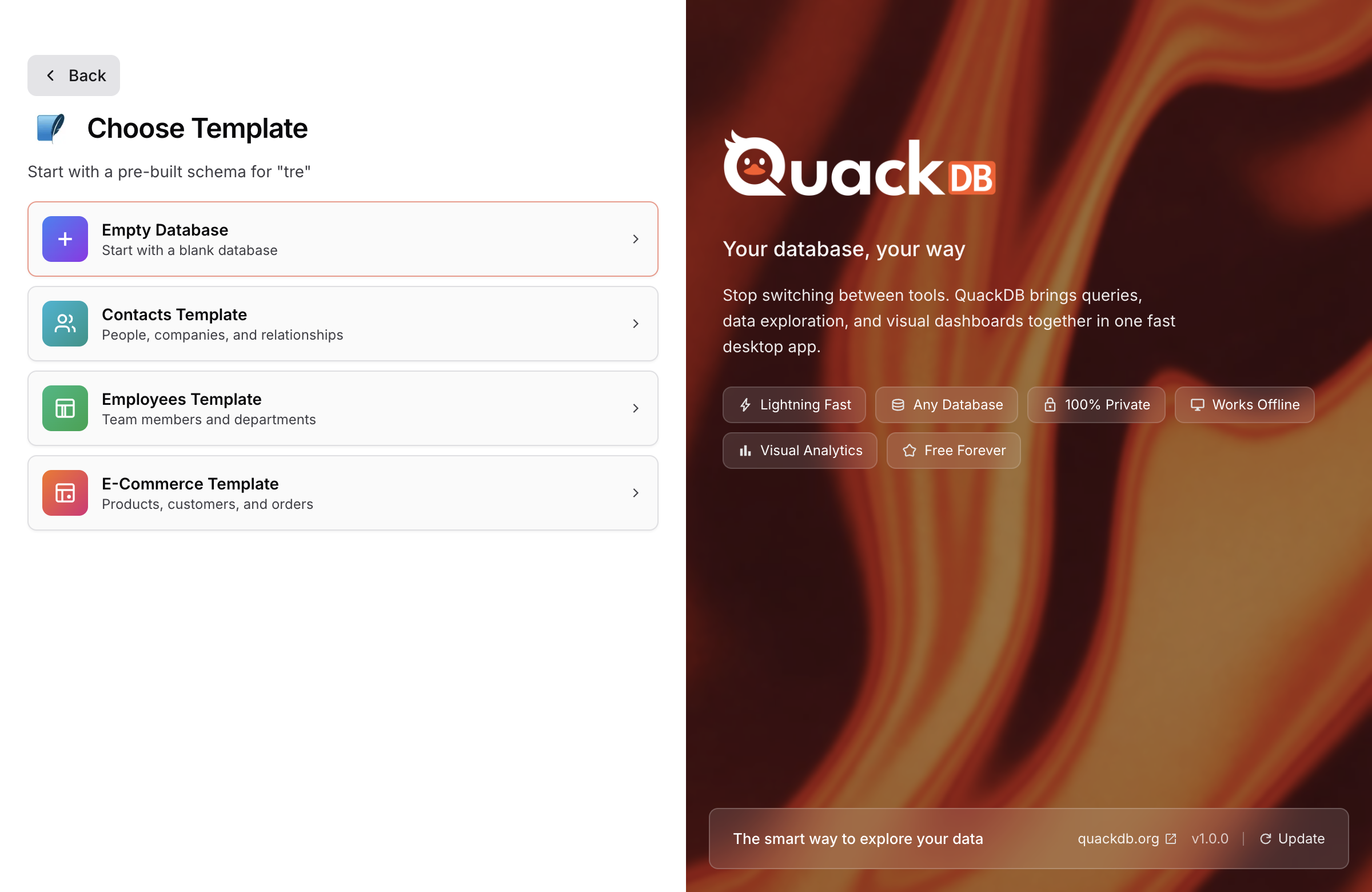
Tip: You can also drag and drop a database file directly onto QuackDB.
4. Run Your First Query
Once connected, your tables appear in the sidebar. Click the SQL Editor tab and try:
SELECT * FROM your_table LIMIT 10;
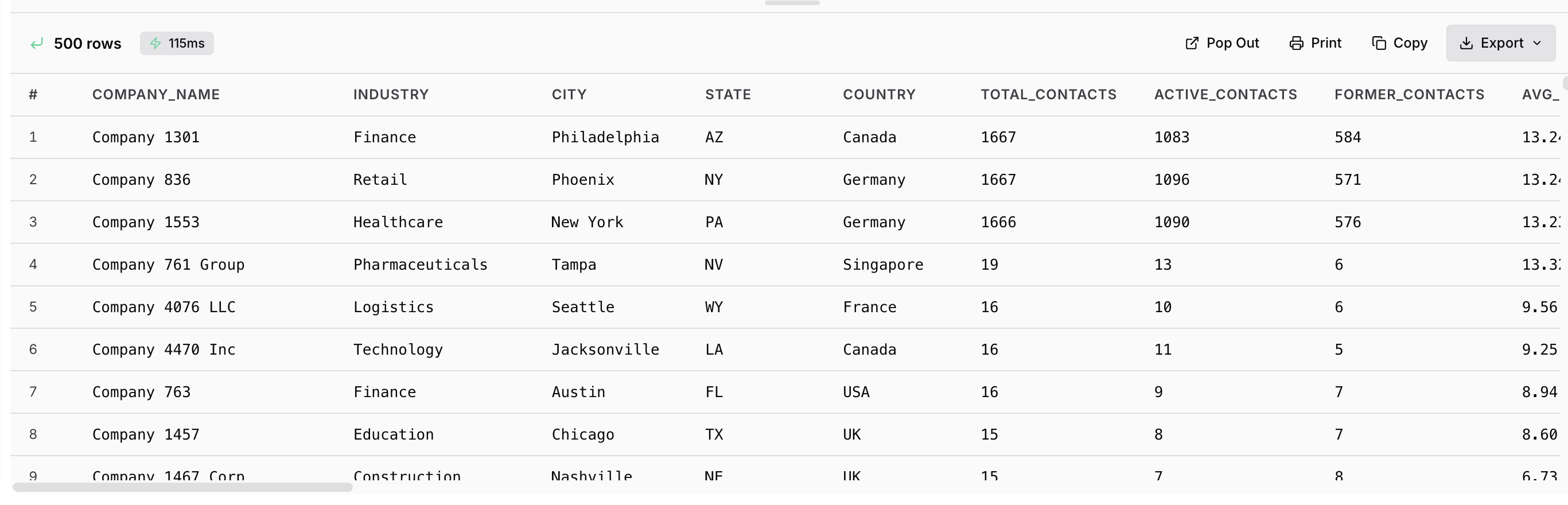
Press ⌘ Enter to execute. Results appear in the data grid below.