Find your way around the QuackDB workspace
A tour of the sidebar, tabs, toolbar, right panel and status bar, and what each part of the workspace does.
When a database is open, the workspace gives you everything for that connection in one window.
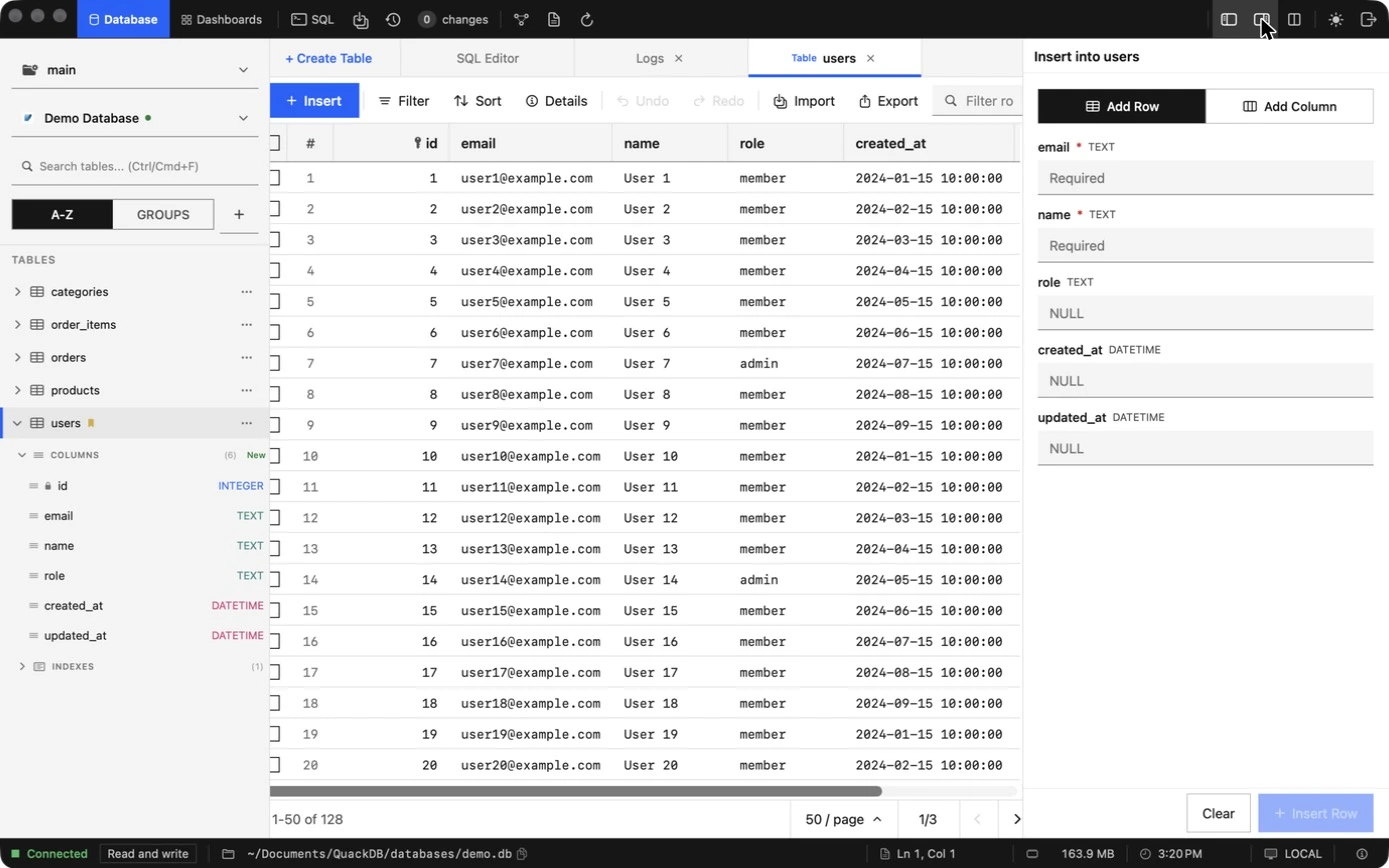
| Part | What it does |
|---|---|
| Sidebar | Shows the connection and its tables. Search tables with ⌘ F, switch between A-Z and Groups to organize them, and expand a table to see its columns and indexes. Each table has a ⋯ menu for actions such as duplicating or exporting. |
| Tabs | Each table, the SQL editor, the schema diagram, the change history and the Logs open as tabs. + Create Table opens a table builder. Close a tab with ⌘ W. |
| Toolbar | Open the SQL editor, save changes (⌘ S), open the change history, see the pending changes count, open the schema diagram and the Logs, and refresh. At the right: hide the sidebar, show the right panel, split the view, switch between light and dark, and disconnect. |
| Right panel | Insert a row or add a column to the open table. It also holds the pending changes review. |
| Status bar | Shows the connection state, whether it is Read and write, the database path or host, the cursor position in the editor and memory use. |
Database, Notebooks and Dashboards
The three tabs at the top left switch the main area. Database is the workspace described here. Notebooks holds documents that combine notes, SQL and Python. Dashboards is a placeholder in this release.
Split view
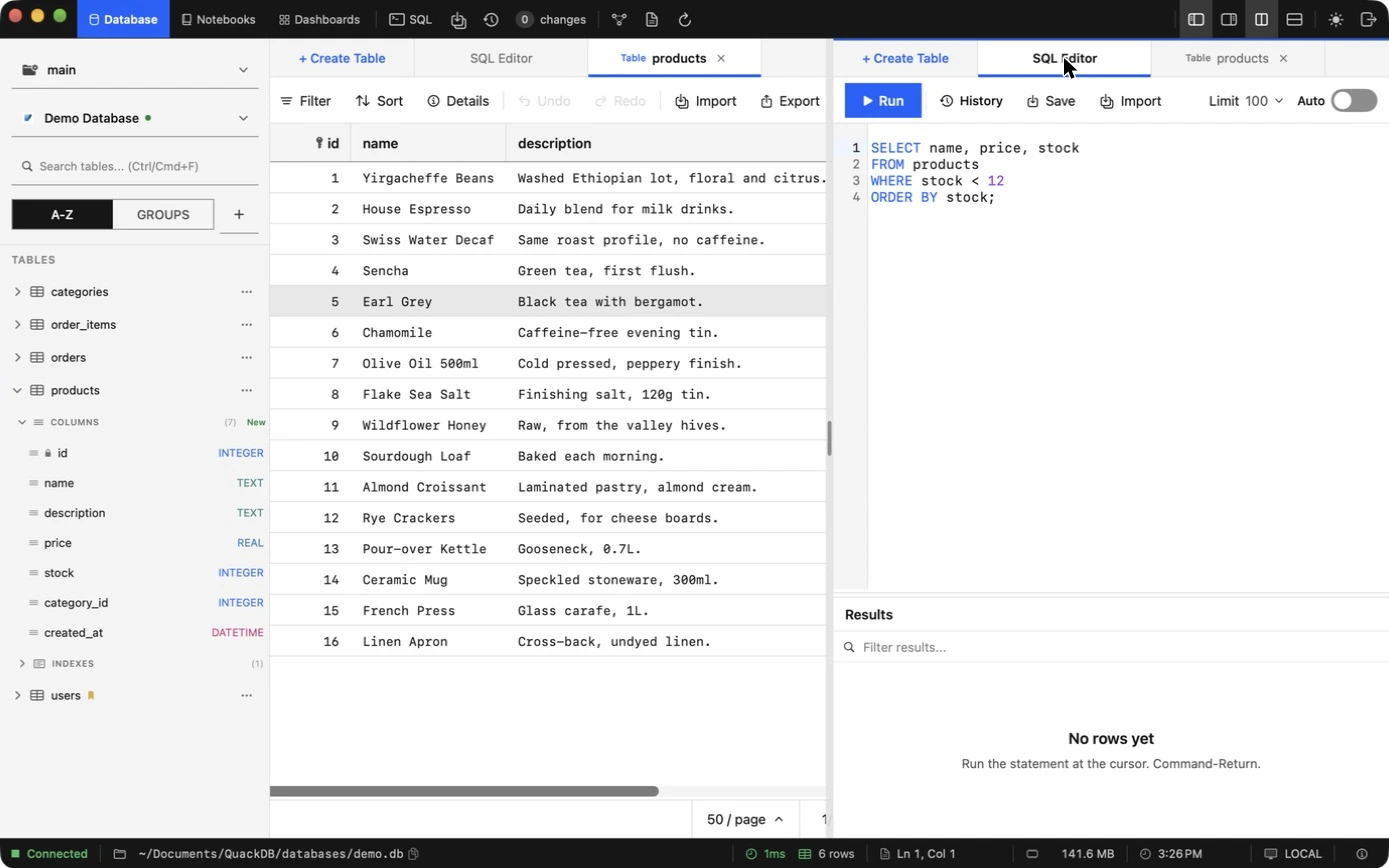
Split view shows two panes side by side so you can compare data, or keep a query in view while you read a table. Each pane has its own tabs and stays separate from the other.
- 01Choose Split into two panes in the toolbar. A second pane appears with the message “Choose a tab for this pane”.
- 02Pick a tab in either pane, for example the SQL Editor on one side and a table on the other. Tables you open from the sidebar appear in the pane you are working in.
- 03Drag the divider to resize the panes. Choose Switch to Vertical Split to stack them instead, or Close split view to return to one pane.
Session logs
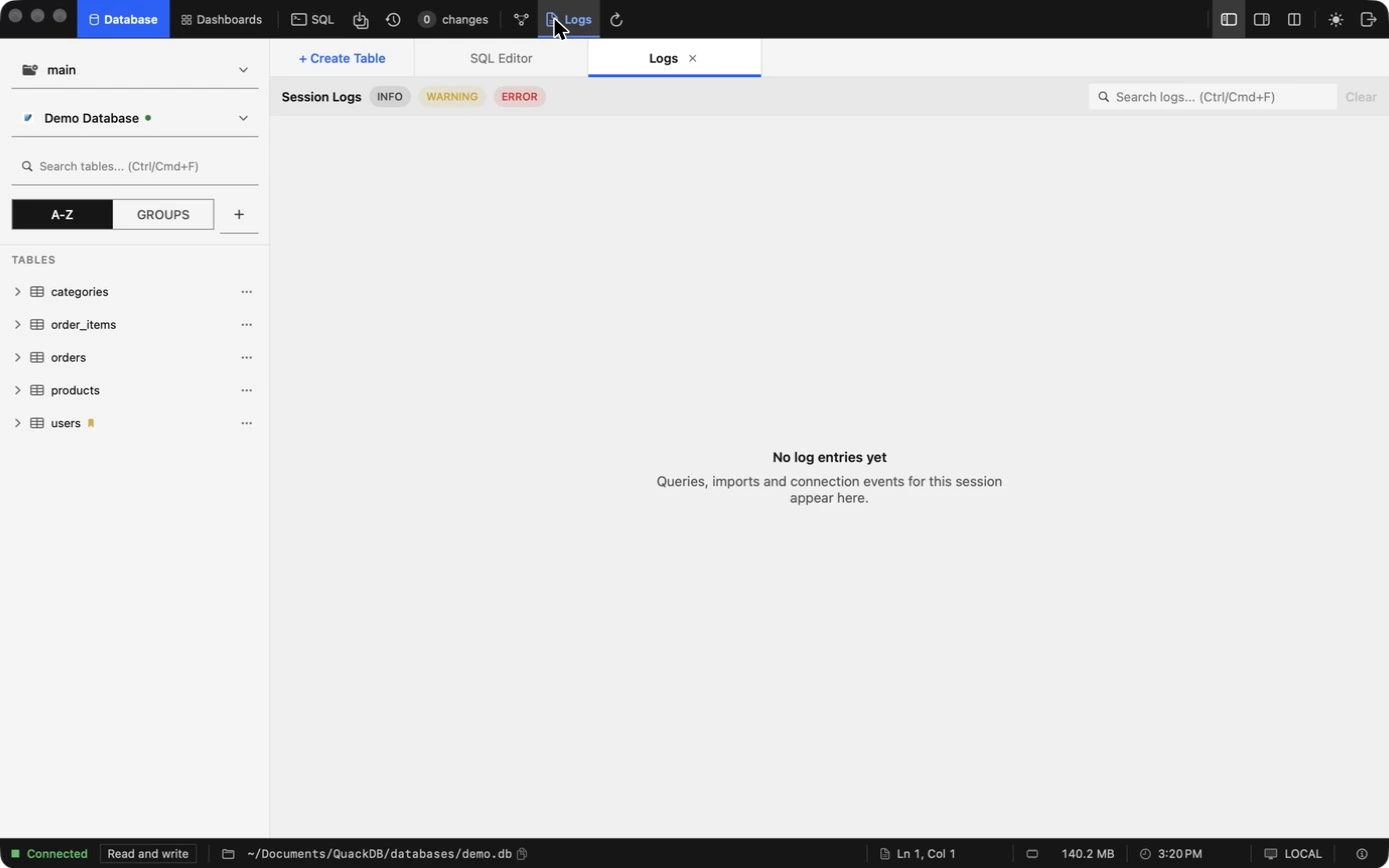
The Logs tab records queries, imports and connection events for the current session. Filter by Info, Warning or Error, search the log, or clear it. It is the first place to look when something does not behave as expected. See Logs and diagnostics for examples and common errors.