Connect to SQLite, PostgreSQL, MySQL, SQL Server or Supabase
Open a SQLite file or connect to a PostgreSQL, MySQL, SQL Server or Supabase database from your Mac, with the fields each connection needs.
A connection tells QuackDB where a database lives and how to reach it. Once saved, it appears under Recent Connections, so reconnecting takes one click.
Add a connection
- 01On Recent Connections, choose New database.
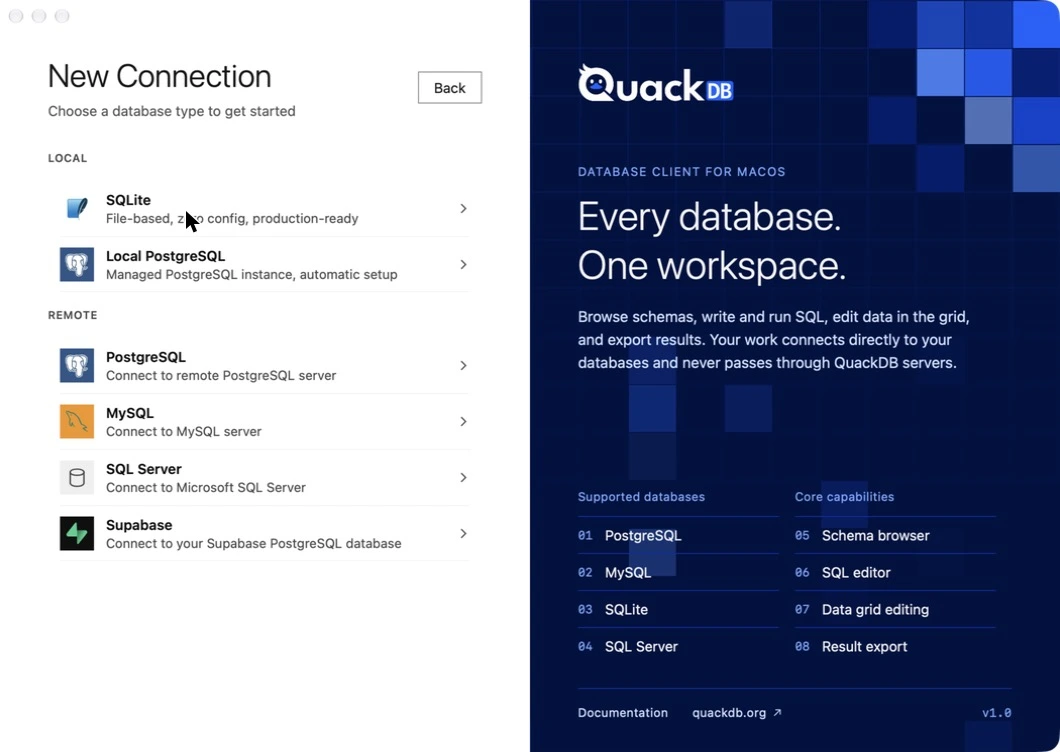
- 02Pick the database type. Types are grouped as Local (SQLite and Local PostgreSQL) and Remote (PostgreSQL, MySQL, SQL Server and Supabase).
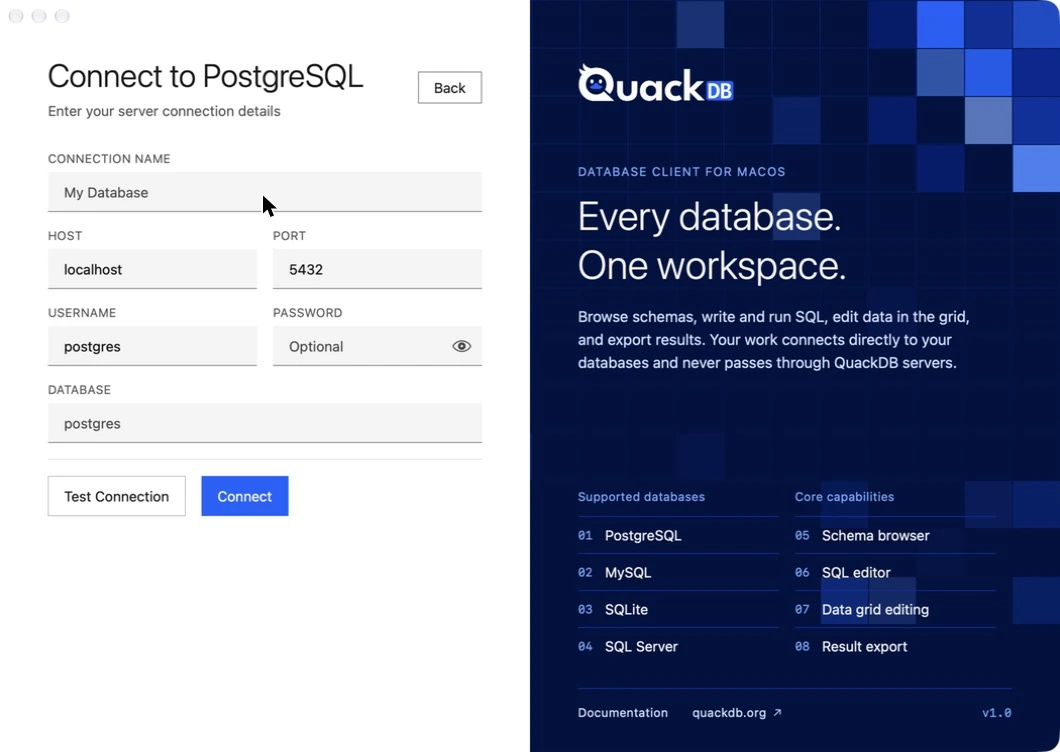
- 03For a remote PostgreSQL server, choose Connect Remote. Enter the details from the table below.
- 04Choose Test Connection to check the details, then Connect. QuackDB saves the connection and stores the password in the macOS Keychain.
Connection details by database
| Database | What you provide |
|---|---|
| SQLite | Choose the database file on your Mac. |
| Local PostgreSQL | Nothing to install. QuackDB starts and manages a PostgreSQL server for you, with no Homebrew or terminal commands. |
| PostgreSQL | Connection name, host, port (5432 by default), username, password and database. |
| MySQL | Host, port, username, password and database. |
| SQL Server | Host, port, username, password and database. |
| Supabase | In the Supabase dashboard open Connect and copy the Direct connection details. Paste the connection string or enter the parameters. QuackDB connects over SSL. |
Manage saved connections
On Recent Connections, the ⋯ menu lists Export, Import, Edit Connection and Delete Connection under Connections, alongside Settings and Account. Edit a connection to change its name or replace its stored password. Import accepts a SQLite database file or a QuackDB connections export (.json).
Try it first
Demo opens a sample SQLite database so you can explore the editor, grid and schema diagram without connecting anything.
Security
Connection passwords are stored in the macOS Keychain, not in a file. QuackDB connects directly from your Mac to your database. See Security and privacy.If a connection fails, see Troubleshooting.