Appearance, editor, query and data display settings
Change the appearance, editor, query and data display options, and turn optional usage data on or off.
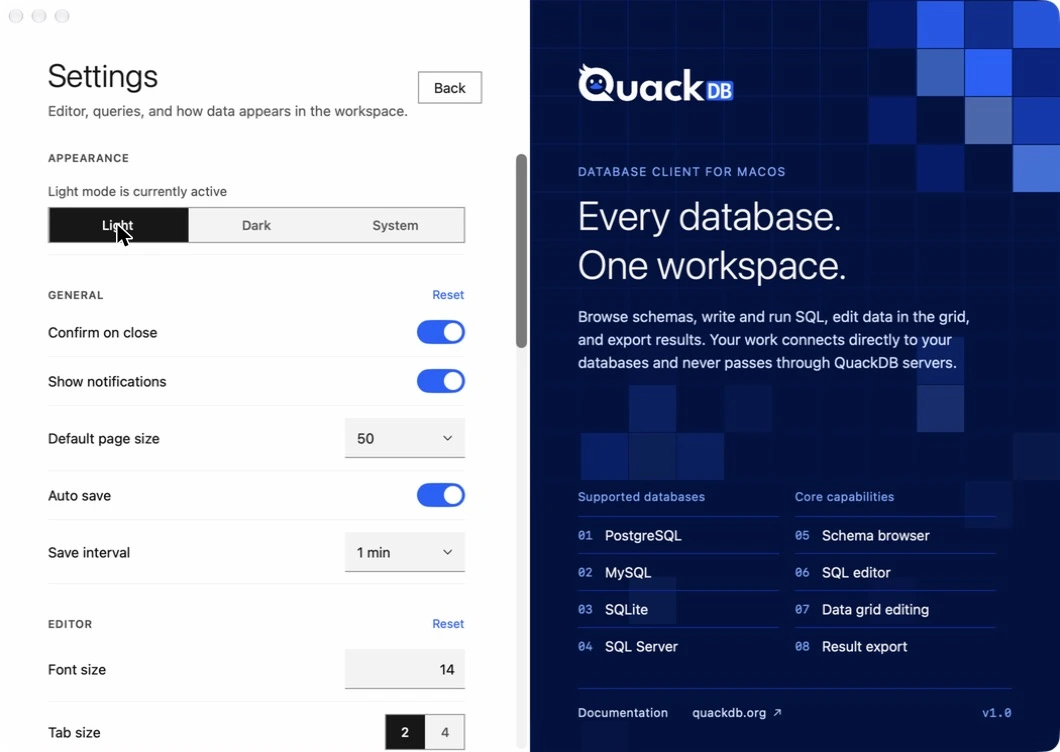
Settings let you tune QuackDB to how you read and write data. Each section has its own Reset, so you can return one group of options to its defaults without touching the rest.
- 01On Recent Connections, open the ⋯ menu and choose Settings.
- 02Change the options you want. Changes apply as you make them.
- 03Choose Back to return.
| Section | Options |
|---|---|
| Appearance | Light, Dark or System. System follows your Mac. You can also switch light and dark from the workspace toolbar. |
| General | Confirm on close, show notifications, default page size (25, 50, 100 or 200), auto save and its save interval. |
| Editor | Font size, tab size (2 or 4), word wrap, line numbers, minimap, auto complete, bracket matching, highlight active line. |
| Query | Maximum rows returned, auto format SQL. |
| Data display | How NULL is shown (NULL, (empty), ∅ or -), date format, where long values are truncated, decimal places. |
| Data | Clear local data. |
Clear local data
Clear local data removes saved connections and credentials, and query and connection history, from this Mac. Because it cannot be undone, QuackDB asks you to type DELETE before it proceeds. Your databases themselves are not touched.