Read the QuackDB session log and fix common errors
Read the session log, with examples of messages, common errors and workarounds.
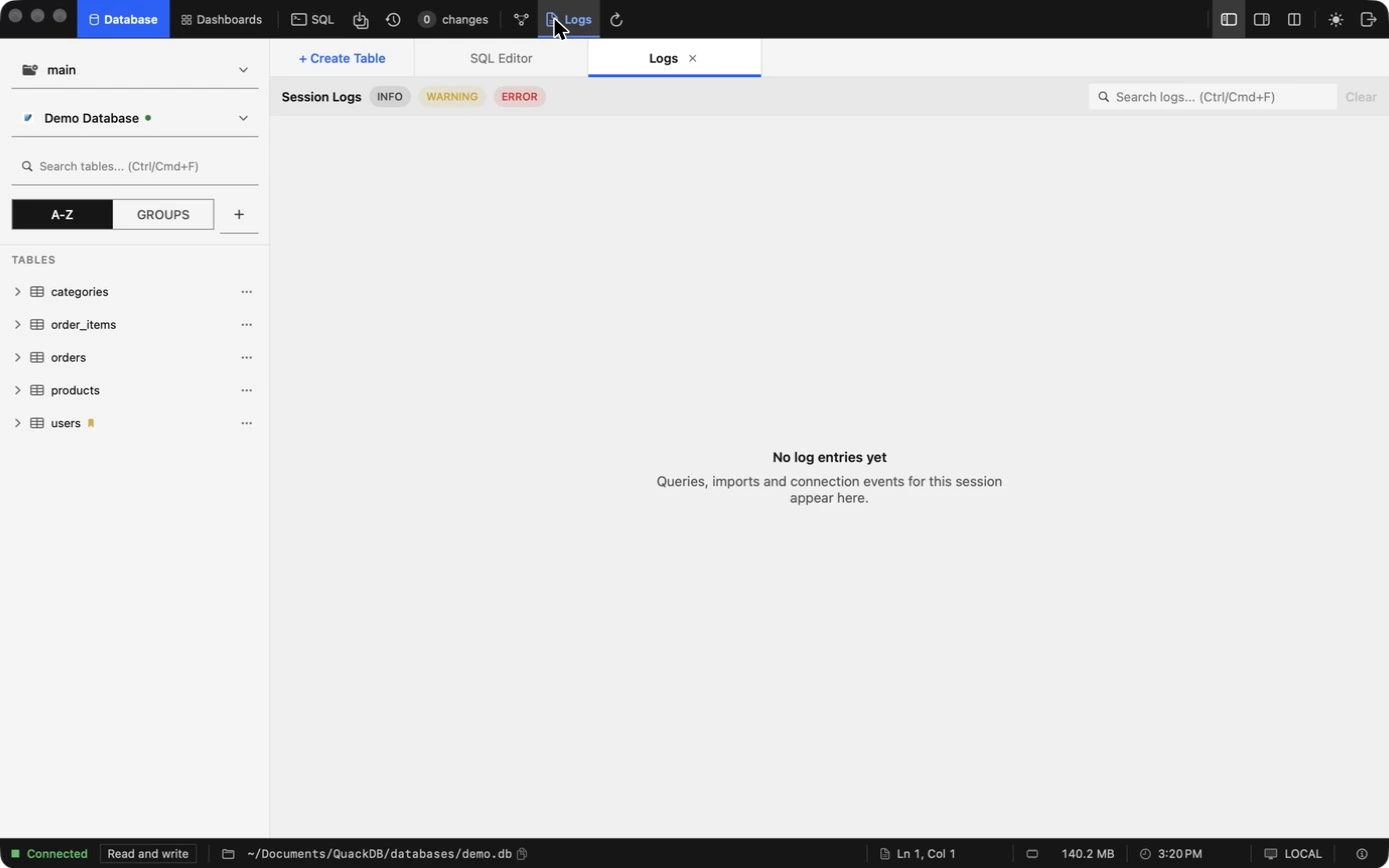
The Logs tab is a running record of what QuackDB did during this session: connections, queries, edits, imports and notebook runs. When something does not behave as expected, the log usually says why, and what to try next.
Open and use the log
- 01Choose Logs in the toolbar. It opens as a tab.
- 02Filter by Info, Warning or Error with the pills at the top. Search with ⌘ F in the log search box.
- 03Choose Clear to empty the log.
Note
The log is kept for the current session and holds the most recent 300 entries. Queries are shown shortened to about 80 characters. Copy anything you need before you quit.Levels
| Level | Meaning |
|---|---|
| Info | Something worked. Connections, queries, edits and imports that succeeded. |
| Warning | Something succeeded but needs your attention, for example a query cancel that may not have stopped the server. |
| Error | Something failed. The entry includes the reason and, for queries, the start of the statement. |
What a healthy session looks like
Connected to Demo Database
Refreshed tables for Demo Database
Loaded 128 row(s) from 'users'
Query returned 6 row(s) in 1ms: SELECT name, price, stock FROM products WHERE stock < 12 ORDER BY stock;
Updated cell 'role' in table 'users'
Inserted row into 'users'
Added column 'notes' to 'users'
Created table 'customers'
Notebook query on Demo Database returned 12 row(s)
Notebook chart on Demo Database finished
Common errors and what to do
| Log entry | What it means and what to try |
|---|---|
Failed to connect to Production: Could not reach SQL Server at db.example.com:1433. Check host, port, and that the server is running. | The server is not reachable. Confirm the host and port, that the server is running, and that a VPN is connected if the database is private. |
MySQL connection timed out ... Check network access and firewall rules. | Packets are being dropped before they reach the server. Ask whoever runs the database to allow your IP address, or connect from an allowed network. |
MySQL authentication failed. Check username and password. | Edit the saved connection and re-enter the password. Check the user exists on that server. |
MySQL blocked this client host. Grant access for your IP in MySQL user permissions. | The user is not allowed from your address. A database administrator can grant it, or you can connect through an allowed host. |
MySQL database does not exist. Check the database name. | The name in the connection is wrong. Edit the connection and correct the database field. |
SQL Server database does not exist or your user cannot access it. | Check the name, and that the login has permission on that database. |
SQL Server TLS handshake failed. Verify encryption settings on the server. | The encryption settings on the server and the client do not agree. Ask the administrator which TLS settings the server requires. |
Query failed: ... — SELECT * FROM userz | The statement has an error, here a table name that does not exist. Fix the SQL, or check the table name in the sidebar. |
Statement failed: ... — UPDATE ... | A write was rejected by the database, for example by a constraint. Read the reason before the dash and adjust the statement. |
Failed to insert row into 'users': ... | A required column was empty or a value broke a rule such as a unique key. Fill the required fields marked with an asterisk, or use a different value. |
Failed to load rows from 'orders': ... | The table could not be read. Refresh with F5, and check that your user may read that table. |
Cancel requested for a live query on Production. The remote statement was not guaranteed to stop. | This is a warning. QuackDB stopped waiting, but a remote server may keep running the statement. Check it on the server if the query is heavy. |
Notebook Python on Demo Database failed | Open the Python cell and read the message under it. See the errors table in Notebooks and Python. |
Workarounds that save time
- A query you wrote fails in the editor but you are unsure why: copy the statement from the log entry, shorten it, and run it in pieces.
- A slow query on a large table: lower the Limit in the SQL editor, then add a WHERE clause before you raise it again.
- The sidebar looks stale after a change made elsewhere: refresh with F5, or refresh the schema with ⌘ R in the Schema tab.
- You need to share an error: copy the entry text, and remove any host names or table names you do not want to share.
- If the log shows no entries after something went wrong, check that you were on the right connection. Logs record events for the connection you have open.
Still stuck? Report a bug and include the relevant lines from the log.