Create tables, groups and favorites
Create tables, organize them into groups, mark favorites and use the table menu for the actions you reach for most.
Beyond browsing rows, QuackDB lets you build tables and keep a large schema organized.
Create a table
- 01Choose + Create Table at the left of the tab bar.
- 02Enter a table name.
- 03Define the columns: a name, a type, and whether the column is a Primary key or Nullable. Choose Add Column for more, or the bin icon to remove one.
- 04Read the SQL preview. It shows the exact CREATE TABLE statement that will run.
- 05Choose Create.
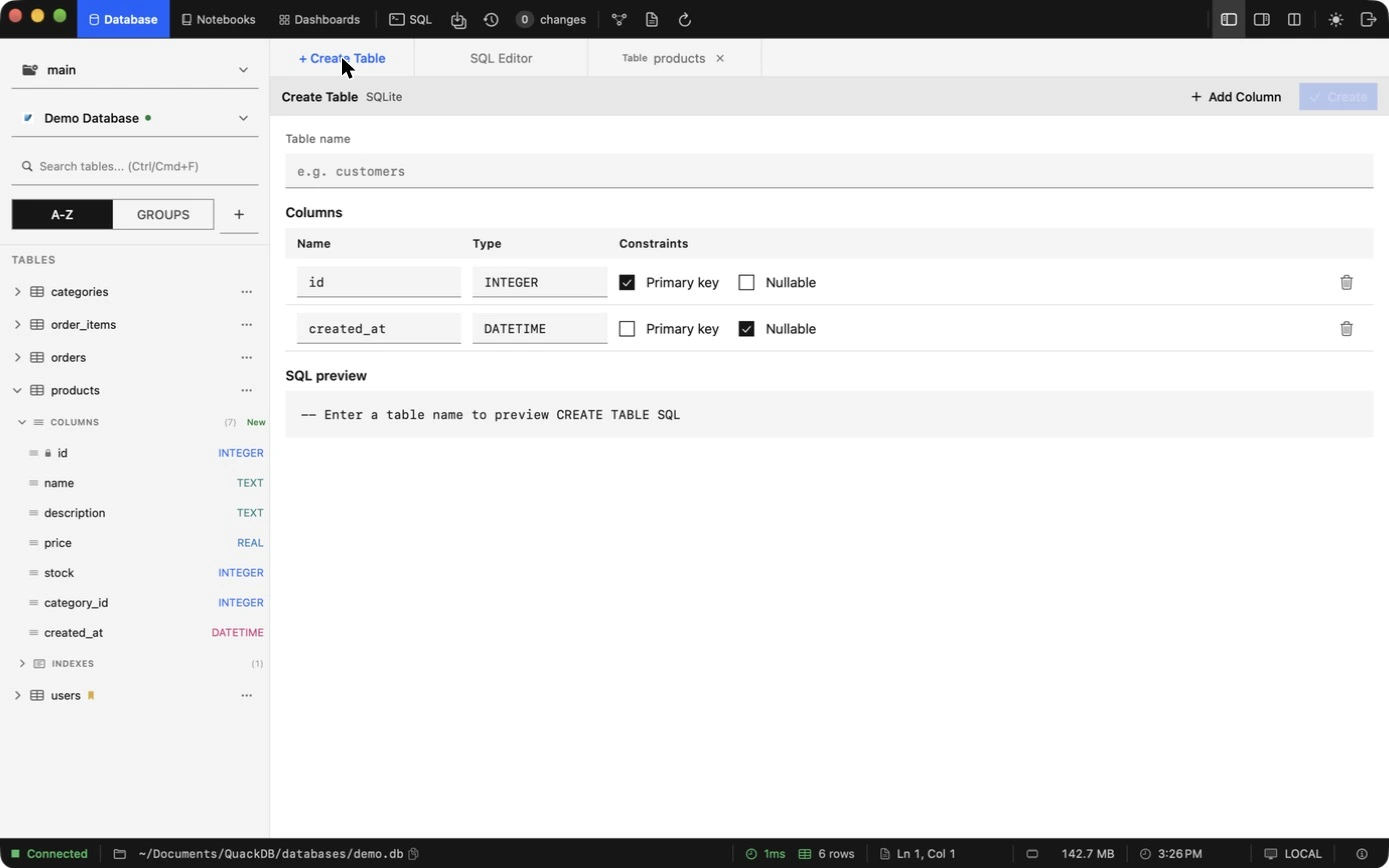
Table menu
Choose the ⋯ beside a table in the sidebar.
| Action | What it does |
|---|---|
| View Schema | Opens the schema diagram focused on the table. |
| Duplicate table | Copies the table. |
| Add to favorites | Marks the table with a bookmark so it is easy to spot in the sidebar. |
| Group table | Moves the table into a group. |
| Export data | Saves the table data as a file. |
| Empty table | Removes all rows and keeps the table. Confirm before it runs. |
| Delete table | Drops the table. Confirm before it runs. |
Important
Empty table and Delete table change the database. Use them on a copy first when you are unsure.Groups
Groups organize the tables of one connection into your own categories, for example by feature or by team.
- 01In the sidebar, switch from A-Z to Groups.
- 02Choose +, name the group, pick a color and choose Create Group.
- 03Add tables with Group table in a table's menu.