Write, format and run SQL in the QuackDB editor
Write and run queries, read the results beneath the editor, format SQL and save the statements you use again.
The SQL editor keeps your query and its results on one screen, so a question can lead straight to the next without switching windows.
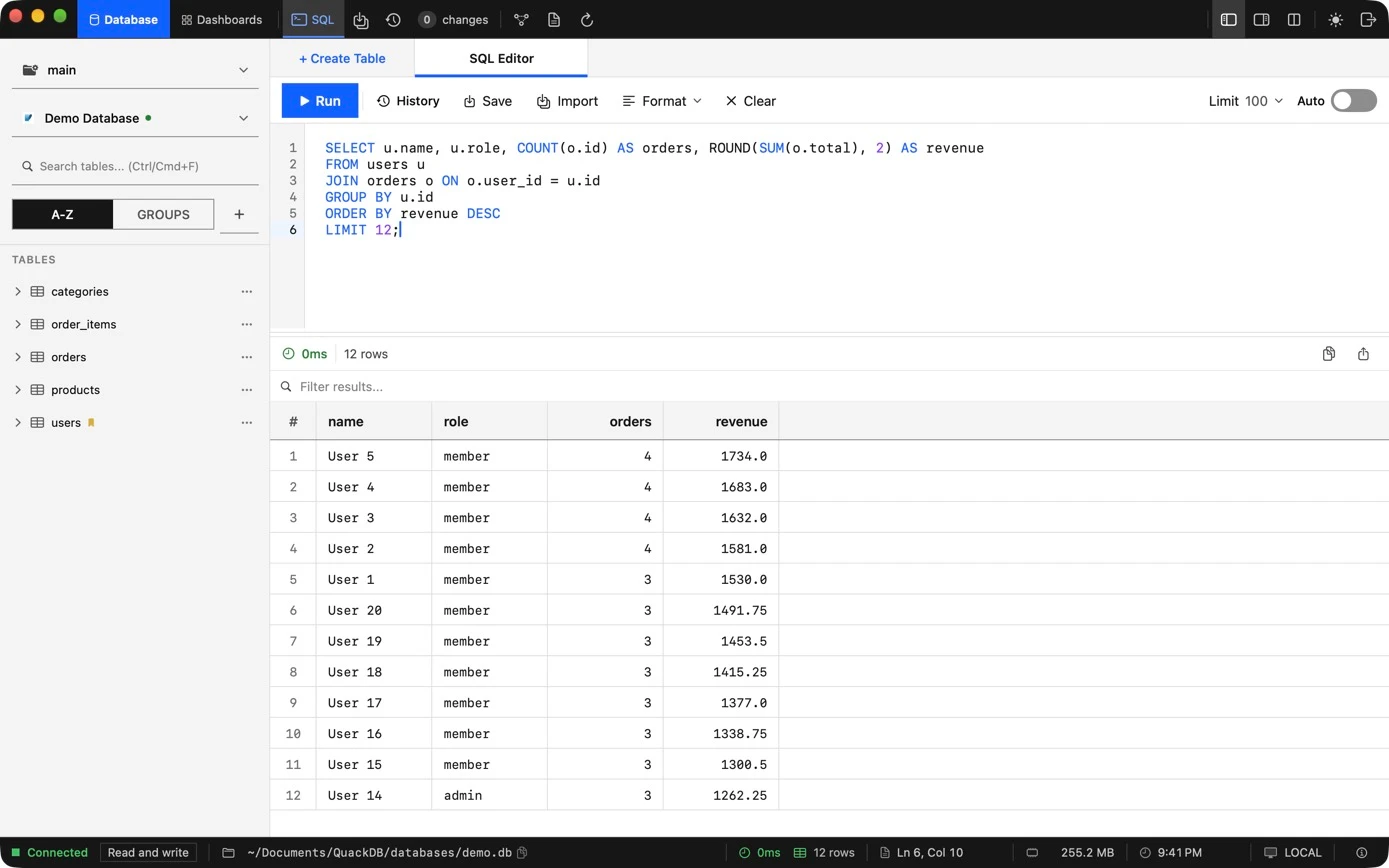
Run a query
- 01Choose SQL in the toolbar to open the SQL Editor tab.
- 02Write a statement.
- 03Choose Run or press ⌘ ↩. If you select part of the text, only the selection runs.
- 04Read the results in the grid beneath the editor, with the row count and run time.
Toolbar
| Control | Purpose |
|---|---|
| Run | Runs the statement at the cursor, or the selection (⌘ ↩). |
| Limit | Caps how many rows a query returns (100 by default), which keeps large tables quick to explore. |
| Auto | Turns automatic application of the limit on or off. |
| Format | Tidies the SQL in the editor so it stays readable. |
| Clear | Empties the editor. |
| History | Reopens queries you have run before. |
| Save | Keeps a statement worth reusing. |
| Import | Brings a query in from a file. |
Work with results
Use the filter box above the results grid to narrow the rows you see, and the export button to save them. See Import and export.
Tip
Editor behavior such as font size, tab size, word wrap, line numbers and auto complete is configurable in Settings.