Draw a database schema diagram from your foreign keys
See how tables relate in a diagram built from your foreign keys. Select a table to read its columns, keys and indexes, then act on it.
The Schema tab turns your tables into an entity relationship diagram, so you can see how a database fits together before you write a query against it. A new teammate can follow how the data connects without reading a wiki first.
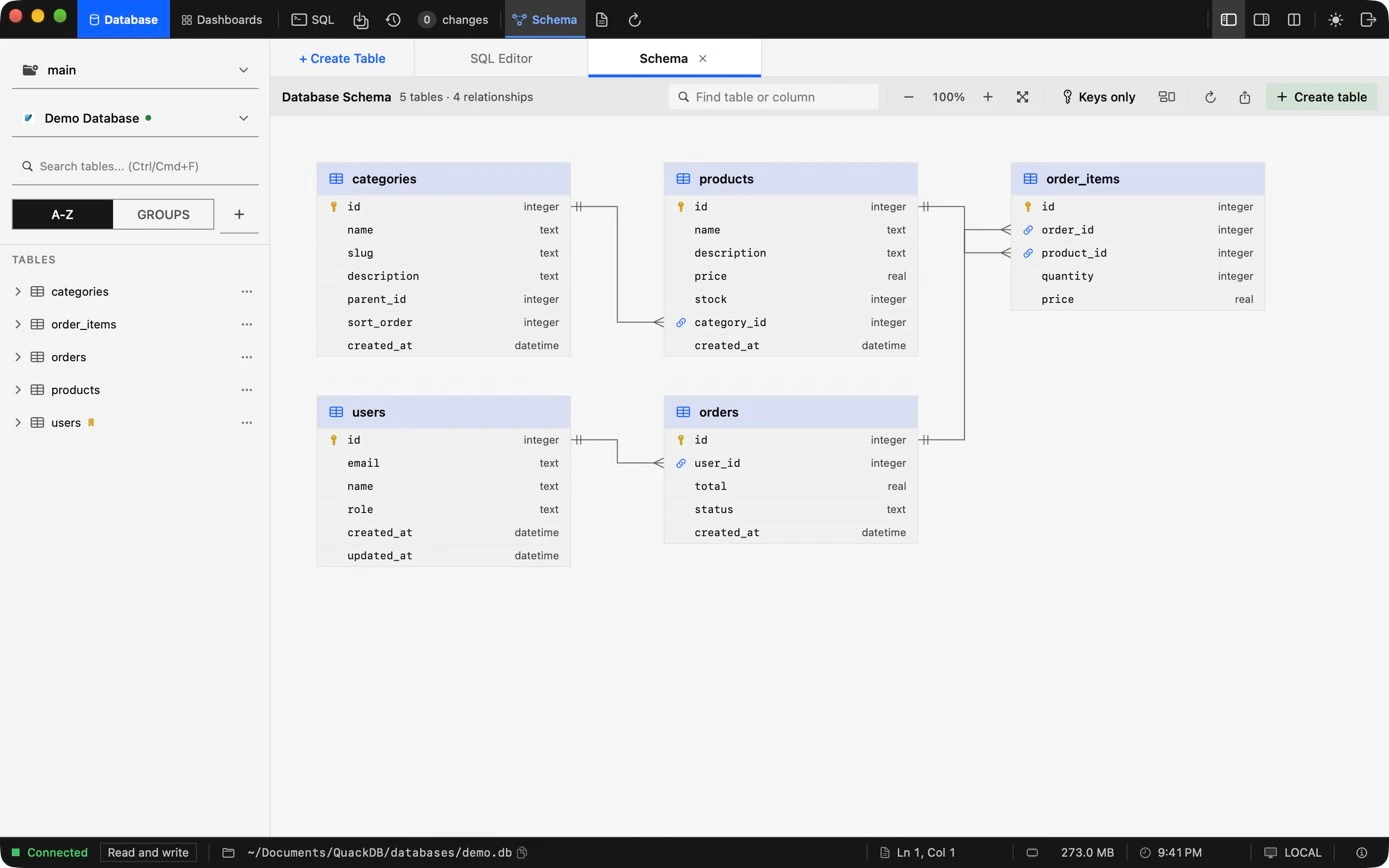
How relationships appear
Relationships come from the foreign keys declared in your database. A database without foreign keys shows tables with no lines between them.Work with the diagram
| Action | How |
|---|---|
| Zoom | Use the buttons or a pinch gesture. Choose Fit to see everything. |
| Rearrange | Drag a table. Your layout is remembered for that connection, and Reset layout restores the automatic one. |
| Find | Search by table or column name to highlight matches. Keys only hides everything but key columns. |
| Trace | Select a table to highlight the tables it connects to. |
Table inspector
Selecting a table opens an inspector with its columns, types, keys and indexes, plus the tables it references and the tables that reference it. From there you can:
- Open the table data
- Add a column
- Duplicate the table
- Copy its CREATE TABLE SQL
- Drop it. Dropping a table asks you to type a confirmation first.
Refresh with ⌘ R and export the schema as SQL with ⌘ E.