SQL and Python notebooks on Mac
Combine notes, SQL and Python in one notebook. Link a Python cell to a query, chart the result with pandas and matplotlib, and fix common errors.
A notebook records an analysis as a sequence of cells. You write the question, run the SQL, and attach a chart to the result. When you reopen the notebook later, the statement, its output and its figure are still together, so the reasoning behind a number stays next to the number. Notebooks belong to the connection they were created on and are stored on your Mac.
Cell types
| Cell | Use it to |
|---|---|
| Note (Markdown) | State the question or explain a result. A formatting bar offers bold, italics, strikethrough, headings, lists, task lists, quotes, code, links, images, tables and rules. |
| SQL | Run a statement on the current connection. The row count and run time appear under the statement, followed by the result grid. |
| Python | Continue from a SQL result. The rows of the linked SQL cell are available as df, a pandas DataFrame, and matplotlib draws figures in the cell. |
Notebooks in the demo database
The demo database includes three notebooks you can open, run and edit. They are a safe place to learn how cells connect.
| Notebook | What it shows |
|---|---|
| Shop tour | Notes and SQL cells that introduce the sample shop: its customers, products and orders, and which products are running low. |
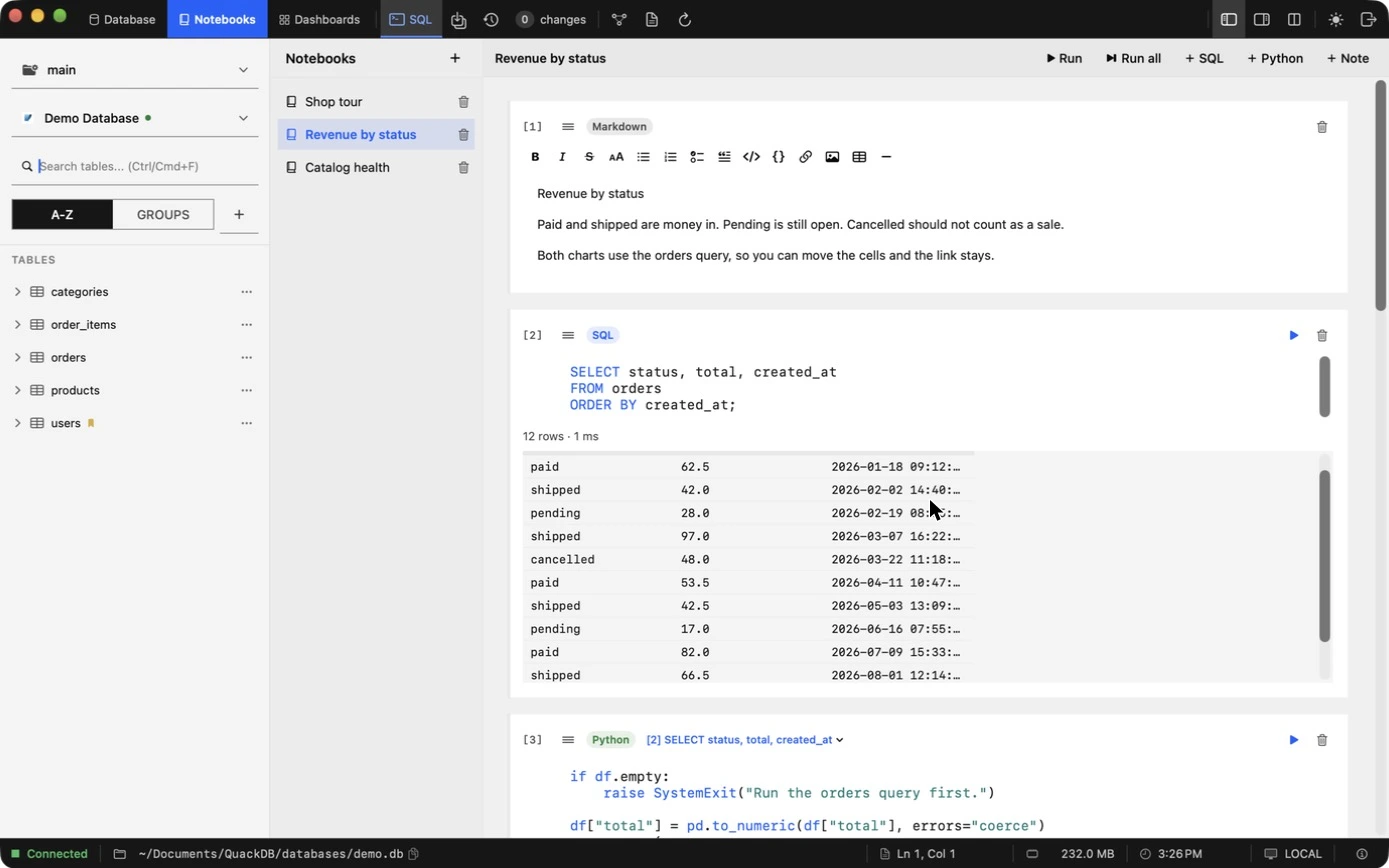
| Revenue by status | A SQL cell over orders, then Python cells that summarize revenue by status and by month and draw charts. |
| Catalog health | A notebook about the product catalog that you can open and run alongside the others. |
Create a notebook
- 01Open the Notebooks tab at the top left. The list on the left shows the notebooks for this connection.
- 02Choose + next to Notebooks to start a new one.
- 03Add cells with + Note, + SQL and + Python. Drag the handle at the left of a cell to move it. Cells are numbered, [1], [2] and so on.
- 04Choose Run to run the selected cell, or Run all to run every cell from the top, in order.
How a Python cell finds its data
A Python cell does not query the database itself. It reads the result of a SQL cell, which keeps the query and the analysis tied together and lets you change one without losing the other.
- The header of a Python cell has a link menu, for example
[2] SELECT status, total, created_at. It names the SQL cell that suppliesdf. - Run the SQL cell first. If it has no result, df is empty.
- The link follows the cell, not its position, so moving cells does not break it.
- Only the rows the SQL cell returned are available. Raise the Limit in the SQL cell if you need more rows.
Example: revenue by month
This is the pattern the Revenue by status notebook uses. The SQL cell:
SELECT status, total, created_at
FROM orders
ORDER BY created_at;
And a Python cell linked to it:
if df.empty:
    raise SystemExit("Run the orders query first.")

df["total"] = pd.to_numeric(df["total"], errors="coerce")
df = df[df["status"] != "cancelled"]
df["month"] = df["created_at"].str[:7]

monthly = df.groupby("month", as_index=False)["total"].sum()
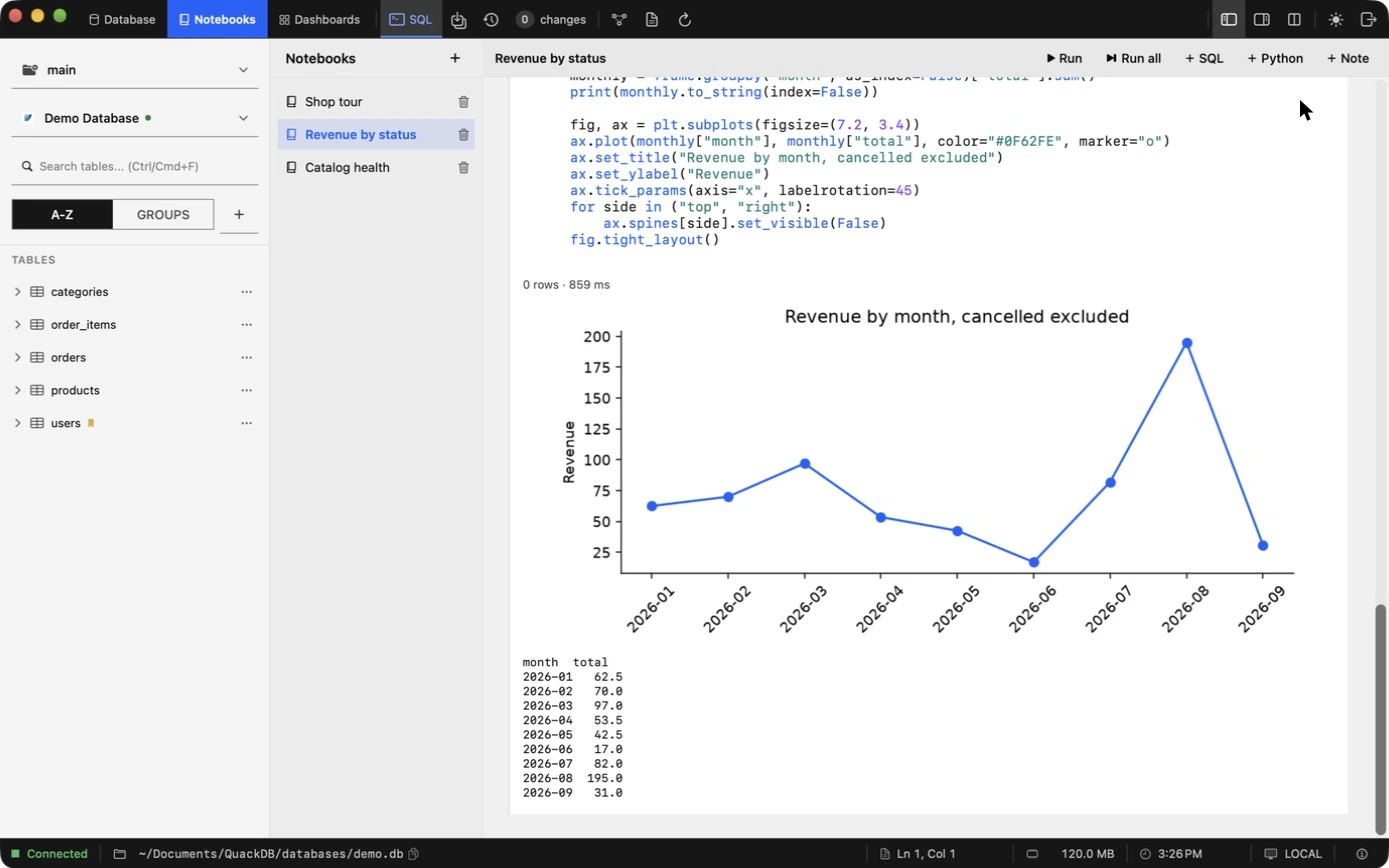
print(monthly.to_string(index=False))

fig, ax = plt.subplots(figsize=(7.2, 3.4))
ax.plot(monthly["month"], monthly["total"], marker="o")
ax.set_title("Revenue by month, cancelled excluded")
ax.set_ylabel("Revenue")
fig.tight_layout()pd(pandas) andplt(matplotlib.pyplot) are already imported, so you do not need import lines.- Values arrive as text, so convert numbers with
pd.to_numericbefore you add or compare them. printoutput appears under the cell. A figure you create is drawn in the cell and stored with the notebook.- Guard the top of a cell, as the example does, so a missing result gives a clear message instead of an error.
First run: the Python environment
The first time you run a Python cell, QuackDB prepares a private environment on your Mac and installs pandas and matplotlib into it. It does not change your system Python or other projects. This needs Python 3 and an internet connection once. Later runs reuse the environment and start straight away.
Errors and workarounds
| What you see | Cause and fix |
|---|---|
| Python 3 was not found. Install it, then run this cell again. | No Python 3 was found in the usual locations (/opt/homebrew/bin, /usr/local/bin or /usr/bin). Install Python 3 from python.org or with Homebrew (brew install python), then run the cell again. |
| Could not create the Python environment. | The private environment could not be created. Check that Python 3 starts in Terminal (python3 --version) and that your Mac has free disk space, then run the cell again. |
| Could not install matplotlib and pandas. | The one-time install needs an internet connection. Reconnect, check any VPN or proxy that blocks package downloads, then run the cell again. |
| Python cell is empty. | Write some code in the cell before you run it. |
| The cell stops with "Run the orders query first." | The linked SQL cell has not produced rows. Run it, or choose Run all so cells execute in order. |
| KeyError: 'total' (or another column) | The linked SQL cell does not return that column. Check the SELECT list, or pick the right SQL cell in the link menu. |
| A SQL cell shows an error instead of rows | Read the message under the cell, and the Logs tab for the same entry. See Logs and diagnostics for common messages. |
| No figure appears | Create the figure in the cell, for example with plt.subplots(), and run the cell again. Printing alone does not draw a chart. |
Where to look
Every notebook run is also written to the session logs, for exampleNotebook chart on Demo Database finished or Notebook query on Demo Database failed: ....Delete a notebook
Choose the bin icon beside a notebook. QuackDB asks you to confirm, because the cells and their results are removed from this Mac. To remove a single cell, use the bin icon in its header.