Browse, filter and edit table data in the data grid
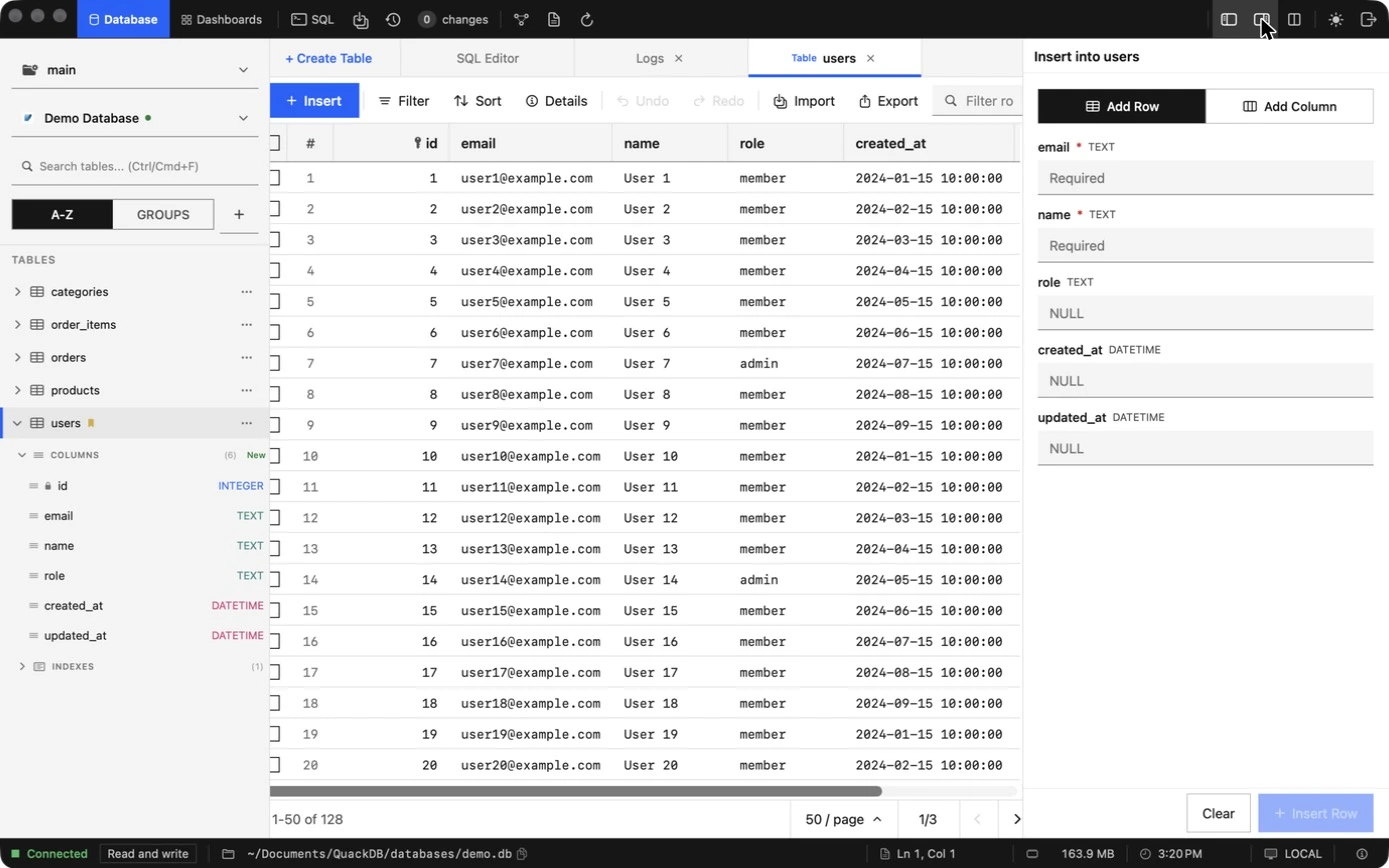
Open a table, filter and sort its rows, and edit values in place. Every edit is held as a pending change until you commit it.
Open a table from the sidebar to see its rows in the data grid. Large tables are paged, with a page size you choose, so a table with millions of rows opens as quickly as a small one.
Table toolbar
| Control | Purpose |
|---|---|
| Insert | Opens the right panel to add a row, or a column. |
| Filter, Sort | Narrow and order the rows. You can also type in the filter box, for example name = 'John'. |
| Details | Shows the table's columns, types and indexes. |
| Undo, Redo | Reverse or reapply an edit. |
| Import, Export | Move data in and out. See Import and export. |
Edit a value
- 01Double-click the cell you want to change.
- 02Type the new value, then press Return to save the cell edit or Esc to cancel it.
- 03The edit is held as a pending change. Review and commit it in the changes panel. See Changes and history.
Add rows and columns
- 01Choose Insert. The right panel opens with Add Row and Add Column.
- 02Fill the fields. Required columns are marked with an asterisk and show their type.
- 03Choose Insert Row, or Clear to start over. The row is held as a pending change.
- 04Undo and redo with ⌘ Z and ⇧ ⌘ Z.
How values are shown
Settings control how NULL values, dates, long text and decimals appear, which helps when you are reading data closely. See Settings.