Review, commit and undo database changes
See pending edits before they are applied, commit them with a message, and undo a committed change from the change history.
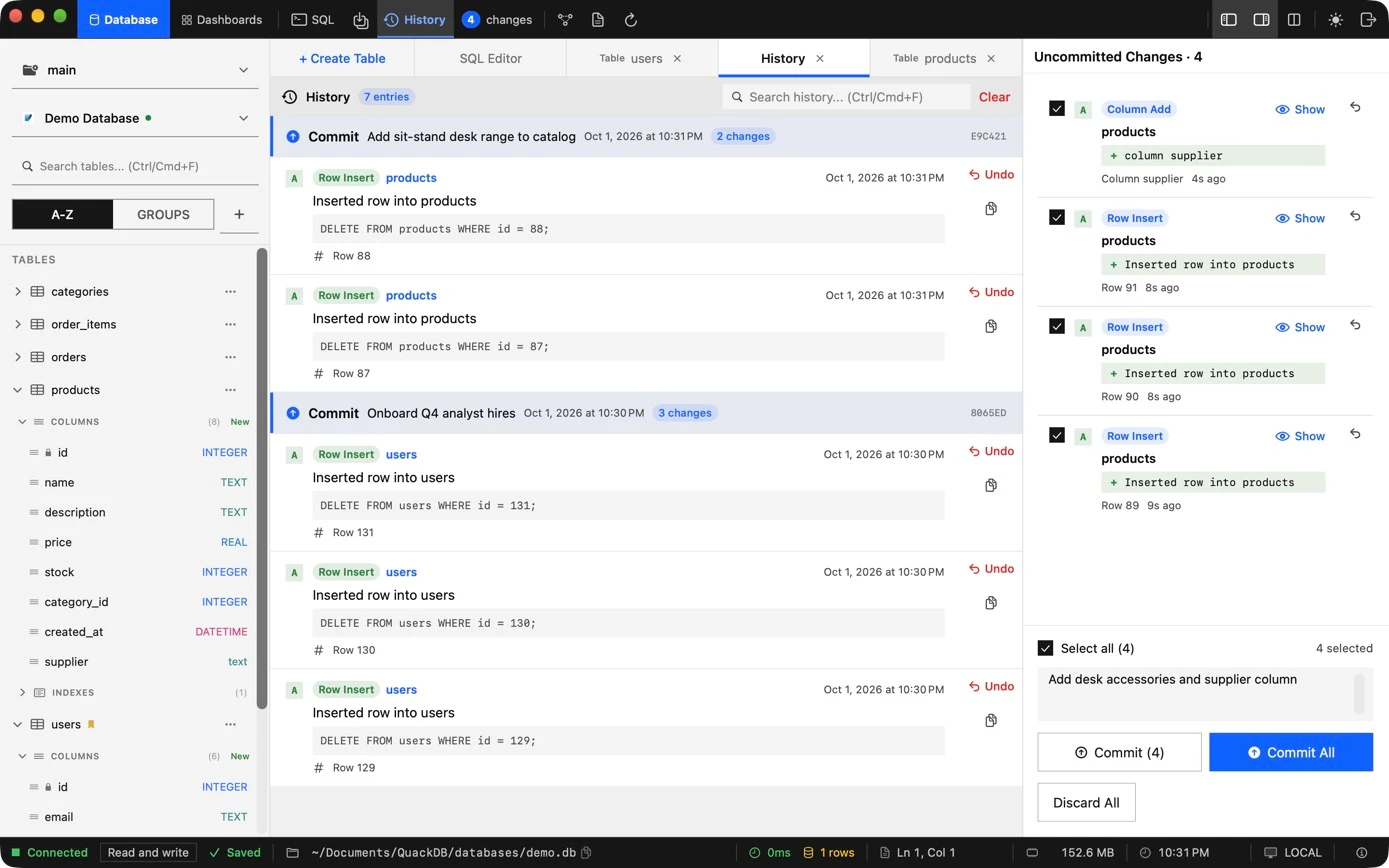
QuackDB treats your edits the way a version control tool treats code, so changing data feels deliberate rather than risky. Edits are collected first, reviewed, then committed with a message. Every commit is recorded, and a committed change can be undone.
How it works
| Stage | What it means |
|---|---|
| Pending | An edit you made that has not been applied yet. The number beside changes in the toolbar counts them. |
| Committed | A change you applied with a message. It is listed in the History tab. |
| Undone | A committed change that was reversed from the History tab. |
Review and commit changes
- 01Open the changes panel to see each pending change, for example a row insert, with the table it affects.
- 02Select the changes you want to apply.
- 03Add an optional commit message that explains why.
- 04Choose Commit, or choose Commit All. Choose Discard All to drop pending changes instead.
Undo a committed change
- 01Open the History tab.
- 02Find the entry. Each one shows its message, time and a short ID.
- 03Expand it to see what changed and the SQL that reverses it.
- 04Choose Undo.
Important
The staged review flow was verified on the built-in demo database. Behavior on a live server depends on the database and the kind of change, so review the History tab after editing live data.